
Comtrac Frontline is a next-generation mobile app designed to revolutionise field-based investigations. It enables investigators to efficiently collect, manage, and process evidence directly from the field.
Comtrac Frontline is a powerful mobile application designed for field-based users, enabling seamless capture of critical information such as notes, observations, interviews, photographs, videos, and more.
Contents
Download Comtrac
- Open the device and navigate to the app store/Playstore.
- Go to the search bar and type in “Comtrac” then click the search button.
- Once Comtrac appears press download and then enter the app installation password (if required) and wait for the app to install.
- You can also use the QR codes below:
- Apple Store QR Code:
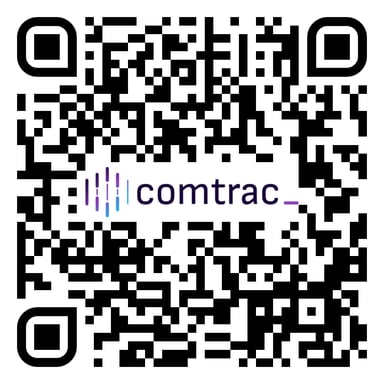
- Android QR Code:
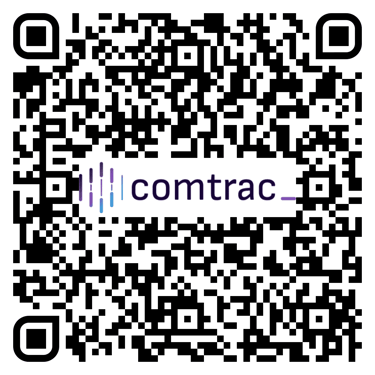
- Apple Store QR Code:
Sign into Comtrac
- Open the Comtrac Frontline Application (Should be located on the home screen or can be found by going to the devices application search feature and typing “Comtrac” into the search bar).
- The app will open to the onboarding slides which detail information regarding who has access to the Comtrac Frontline mobile app and user access requirements. For users wishing to request access or learn more about the app they can press the “Contact Us” button found at the bottom of the middle onboarding page which brings users to an external browser with a support form that they can fill out and then submit to the Comtrac Support Team.
- Once the user navigates past the final onboarding page, they’ll be taken to the sign-in page, which contains a URL field. Enter your company or organisation subdomain in the URL field (this will be provided when your company is onboarded). A Microsoft online login pop‑up will appear. The user must then sign in with their work email and password and may also be prompted for 2FA.
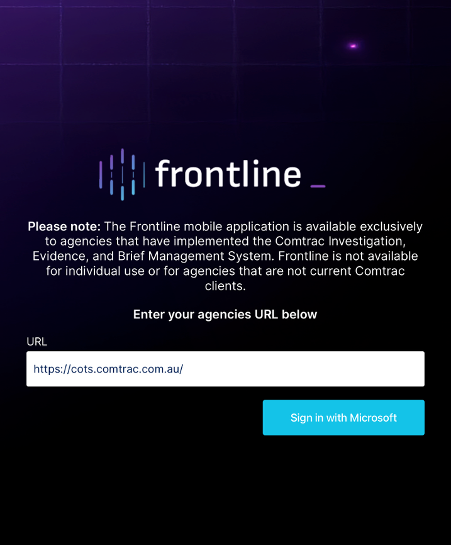
- Once these fields are completed, the user will be logged into Comtrac and taken to the Biometrics Unlock page.
Biometrics
Adding Biometrics
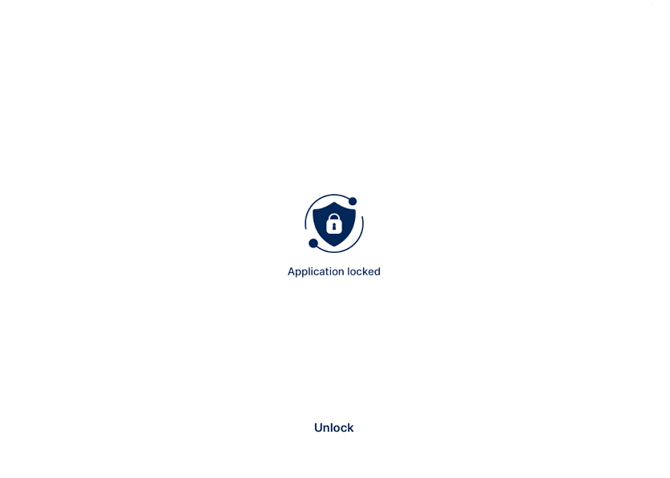
- After signing into your Microsoft account, you will be taken to the Biometric authentication page. Comtrac uses Biometric authentication to keep the users case information safe and secure. The biometric authentication feature uses two different methods Face ID and Touch ID. Before Comtrac can be used biometrics will need to be set up in settings.
Biometric Authentication Page
Setting up Biometrics on IOS Devices
- Navigate to the device's settings app ⟶ Open the search bar and type “Face ID & Passcode” or “Touch ID & Passcode” depending on which biometrics option the device has available ⟶ Select the relevant option and enter the devices passcode ⟶ Scroll down and select the “add a fingerprint...” or “Set up Face ID” button ⟶ Follow the set up instructions ⟶ Once set up close the settings app and navigate back to Comtrac.
Setting up Biometrics on Android Devices
- Navigate to the device’s settings app ⟶ Open the search bar and type “Screen lock and biometrics” ⟶ Select the relevant option and then when the “lock screen” page opens select the “Screen lock and biometrics” button again ⟶ enter the devices passcode ⟶ Select the “Face Recognition” or the “Fingerprints” button located under “Biometrics” ⟶ Follow the set up instructions ⟶ Once set up close the settings app and navigate back to Comtrac
Comtrac Biometric Authentication Page
- Once biometrics are set up and you navigate back to the biometric authentication page in Comtrac, a Face ID or fingerprint prompt will appear so you can unlock the app. After you unlock this page, you will be taken to the Field Note homepage.
Biometric Authentication Page with Prompt
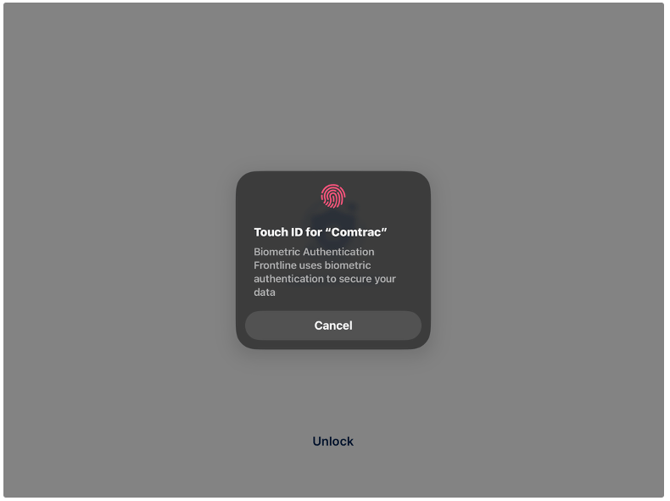
Note: The user will be required to authenticate at multiple points throughout the workflow. This includes upon signing into the app, after 15 minutes of inactivity, and during the witness statement signing process (explained further in the guide).
Field Note Dashboard
Notification Prompt
Upon signing into the Frontline app for the first time a notification prompt will appear which informs the user that “Comtrac" would like to send notifications. These may include alerts, sounds and icon badges which can be configured in settings. At the bottom of the prompt are two options “Allow and “Don’t Allow.” It is recommended that the user allows Comtrac to send notifications. Once the user has given or denied comtrac permission to send notifications the prompt will close and access to the Field Note Dashboard page will be given.
Field Note Dashboard
The field note dashboard provides the user with an overview of all their field notes. Any field notes the user makes will be accessible through this screen.
-
- At the top of this screen is the field note search box. This feature gives users the ability to search for specific field notes by title, location, and involved parties.
- To the right of this search bar is the filter feature. This gives users the ability to filter their field notes by status and date range.
At the bottom of this screen is the Frontline toolbar. This toolbar is always visible and can be accessed at any time. It contains three buttons: the Dashboard button, the New Field Note button, and the Activity button.
- The Dashboard button (☰) allows users to return to the Field Note homepage at any point during the creation process. If pressed while creating a field note, a prompt will appear asking the user to either save the note as a draft or discard changes. The user must select one option before returning to the homepage.
- The Record New Field Note button (+) allows users to start creating a new field note. Pressing this button opens the Field Note Details page, the first section to be completed in the process (covered in more detail later).
- The Activity button (🔔) takes the user to the Notifications page, where they can view all read and unread notifications from the Frontline app. If pressed while creating a field note, a prompt will appear asking the user to either save the note as a draft or discard changes. The user must select one option before proceeding to the Notifications page.
At the top of this screen is the app header. This header is always visible and can be accessed at any time. It contains the profile button, which opens a drop-down menu with several options: Settings, Help, Feedback, and Logout.
- The Settings button opens a page that contains two tools: the Accessibility tool, which is currently unavailable, and the Data Reset button, which allows you to completely wipe all existing data entered into the app. This page also displays information about the app's current build version and the current date.
- The help button brings the user to the Comtrac help centre in the device's default external browser. Users that wish to learn more about how to use Comtrac should consult the Comtrac Help Centre.
- The feedback button opens a form within the Comtrac app that users can use to submit requests to the team for product support or feedback that is not available in our help centre, as well as for subscription enquires.
- The logout button gives users the ability to log out of Comtrac. Any data that has been entered will be saved and can be accessed again once the user has logged back into their Comtrac account.
Creating a New Field Note
Field Note Details Page
The (+) button starts the field note creation process.
-
-
Press the (+) button in the centre of the bottom toolbar.
-
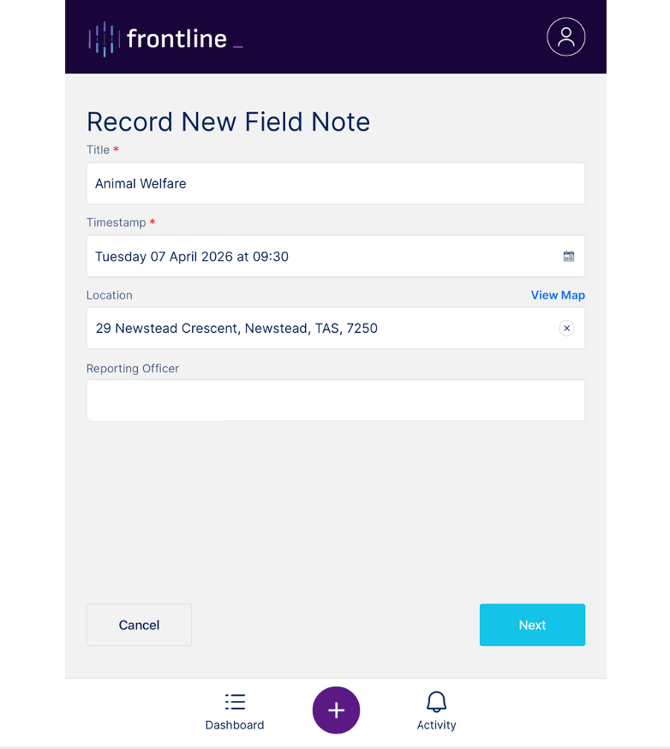
This opens the Field Note Details page.
-
Enter basic information, including the title, timestamp, location, and reporting officer.
-
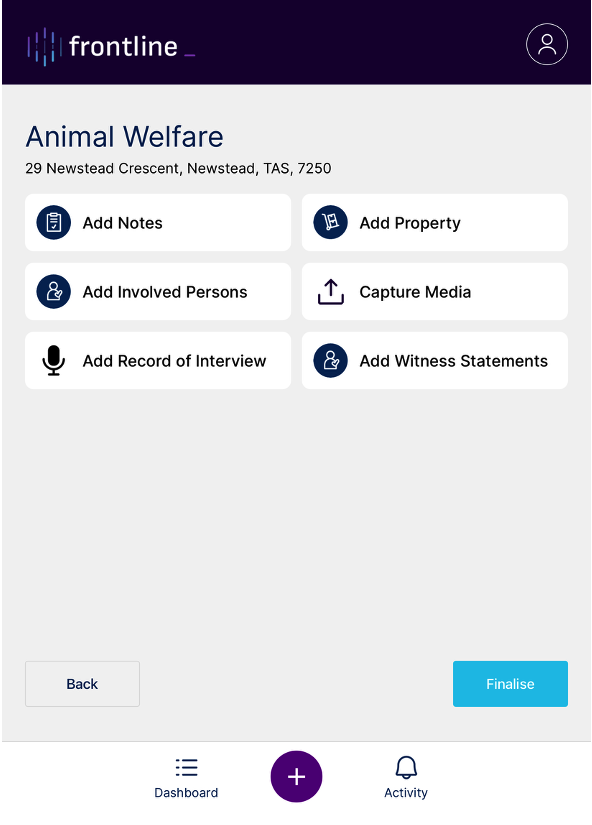
Forms Page
The forms page is the field notes central hub, where all the various tools can be found and accessed. These tools include Notes, Involved Persons, Interview Recordings, Property receipts, Capture Media, and Witness Statements.
Notes Tool
The Notes tool is used to record information related to a field note.
-
-
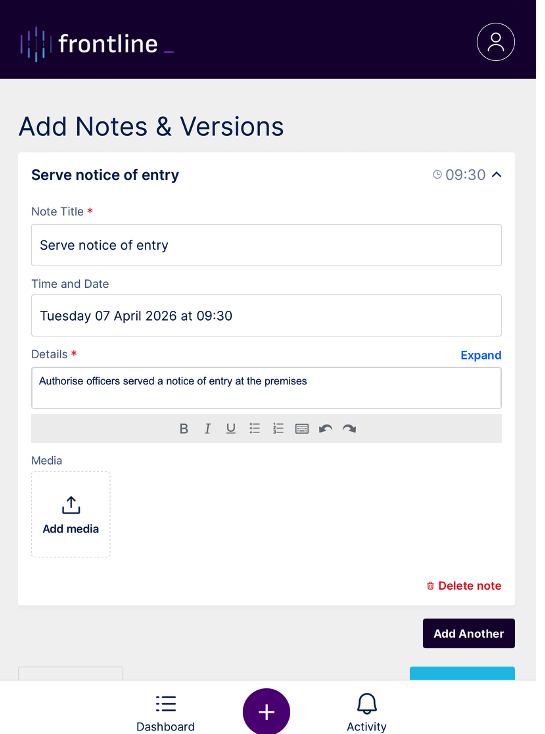
Open the Notes tool to access the note form.
-
Enter the Title, Date and Time, and Details (all fields are required).
-
Add photos or videos using the Add Media field at the bottom of the note.
-
Press the Next button (bottom right) to save the note.
-
Use Add Another to create a new note, or Delete Note to remove the current note.
-
Forms Page After Creating a Note
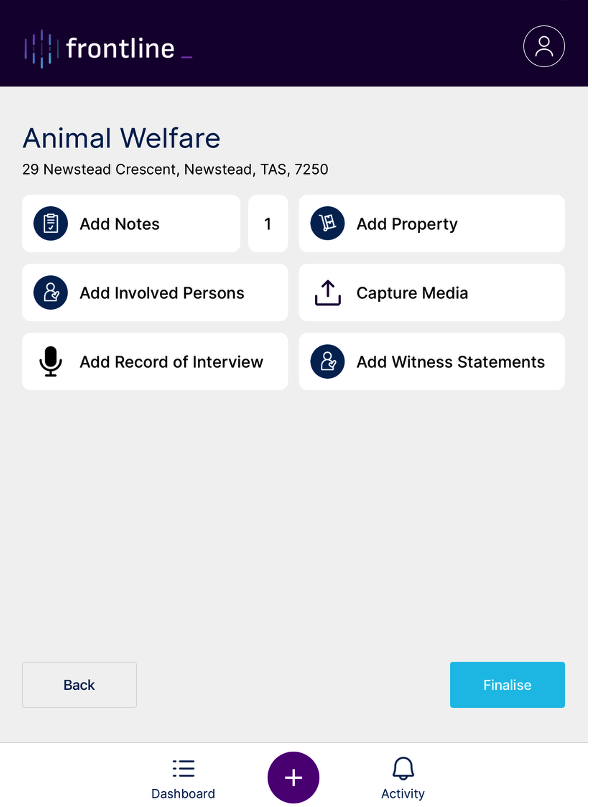
Now there is a note added - indicated by the number 1 in the form.
Property Tool
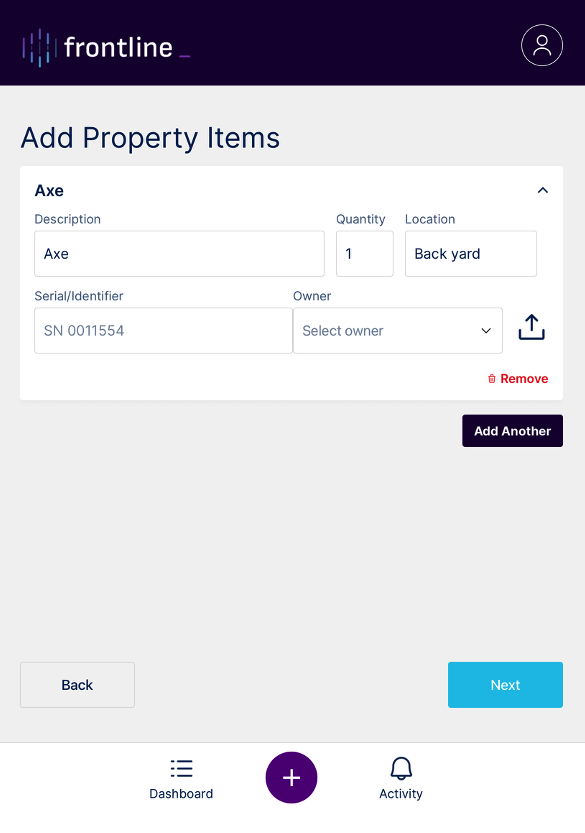
The Property tool is used to create receipts for items related to a field note.
-
-
Open the Property tool to access the receipt form.
-
Enter details such as Description, Quantity, Location, Serial/Identifier, and Owner (all fields are optional).
-
Add photos or videos using the Add Media field next to the Owner field.
-
Press the Next button (bottom right) to save the receipt.
-
Use Add Another to create a new receipt, or Remove to delete the current receipt.
-
Involved Persons Tool
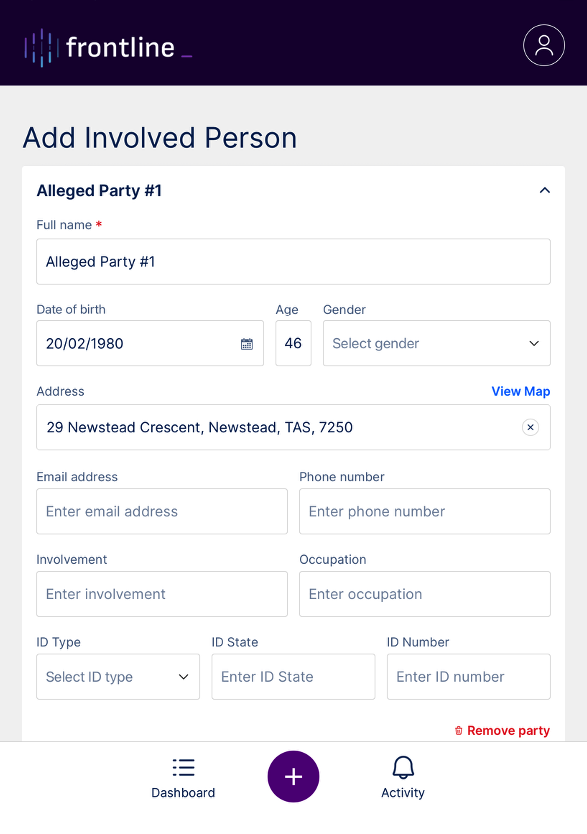
The Involved Persons tool is used to record individuals connected to a field note.These involved persons can be linked to Property receipts, Interview recordings, and witness statements.
-
-
Open the Involved Persons tool to access the form.
-
Enter the Name (required).
-
Enter additional details if available, including DOB, Age, Gender, Location, Email, Phone Number, Involvement, Occupation, ID Type, ID State, and ID Number (all optional).
-
Press the Next button (bottom right) to save the form.
-
Use Add Another to create a new form, or Remove to delete the current form.
-
Capture Media Tool
The Capture Media tool is used to add photos, videos, and files to a field note. Open the Capture Media tool to display four options: Take Photo, Take Video, Add Files, and View Media.
- Take Photo:
-
Grant camera permission if prompted.
-
Capture a photo, then select "Retake" or "Use Photo."
-
Selecting "Use Photo" saves the image and returns to the forms page.
-
-
Take Video:
-
Grant camera and microphone permissions if prompted.
-
Record the video, then select "Retake" or "Use Video."
-
Selecting "Use Video" saves the recording and returns to the forms page.
-
-
Add Files:
-
Opens the Apple photo picker.
-
Select up to 10 photos or videos, then tap the blue tick (top right) to upload.
-
Files are saved in the Capture Media tool.
-
-
View Media:
-
Displays all uploaded files.
-
Use the delete button to remove items.
-
Tap a file to open a carousel and scroll through media.
-
Tap again for full-screen view; close using the X (top left) or by swiping down.
-
Note:
When a user adds a file to the Capture Media tool, a number appears next to the button indicating the total number of files attached. This number increases as files are added and decreases when files are removed.
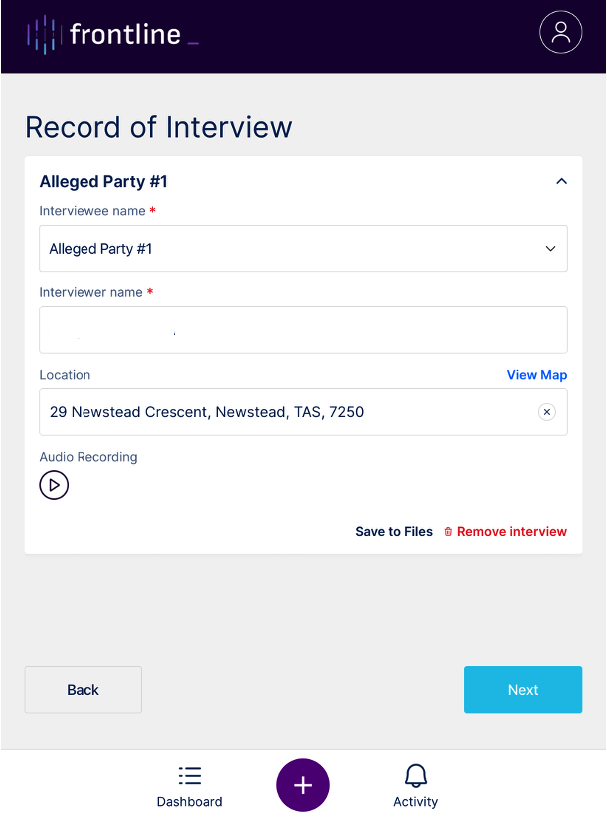
The Interview tool is used to record audio of witness statements related to a field note.
-
-
Open the Interview tool to access the interview details page.
-
Enter the Interviewee Name. This field is linked to the Involved Persons tool, so a form must be created for the individual before they can be selected from the dropdown list.
-
Confirm or edit the Interviewer Name, which is automatically populated with the user’s name.
-
Confirm or edit the Location, which is automatically populated if location permissions are enabled.
-
Press the Start Interview button at the bottom right to begin recording.
-
The screen updates to show a recording button and timer. Press the recording button to begin.
-
A prompt will appear with two options: "Pause" or "End."
-
Select "Pause" to pause the recording; resume by pressing the recording button and selecting "Resume."
-
Select "End" to stop recording; the file is automatically saved.
-
After recording ends, the screen returns to the original Interview tool view.
-
To review recordings, reopen the tool, select the relevant form, and press Play.
-
Record of Interview
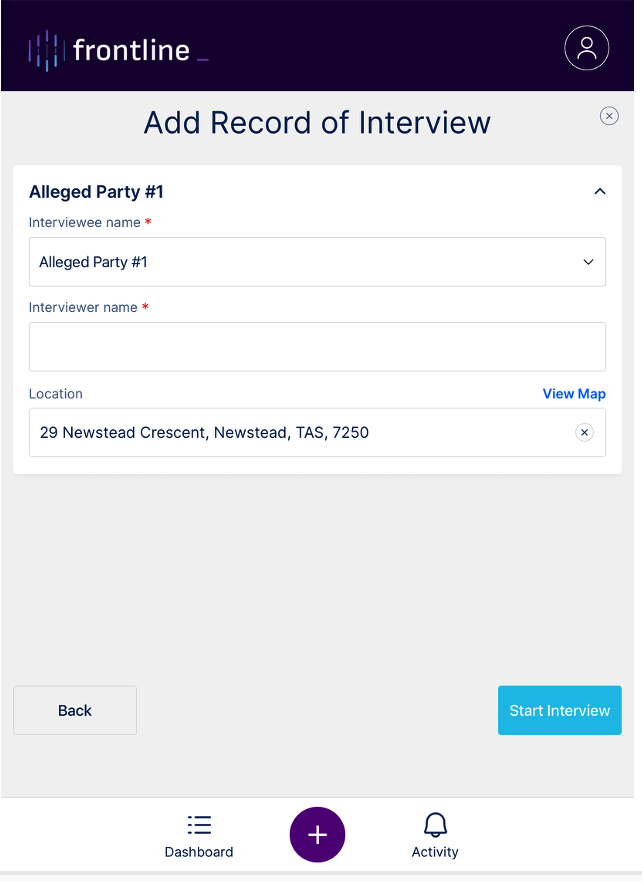
Record of Interview added
Witness Statement Tool
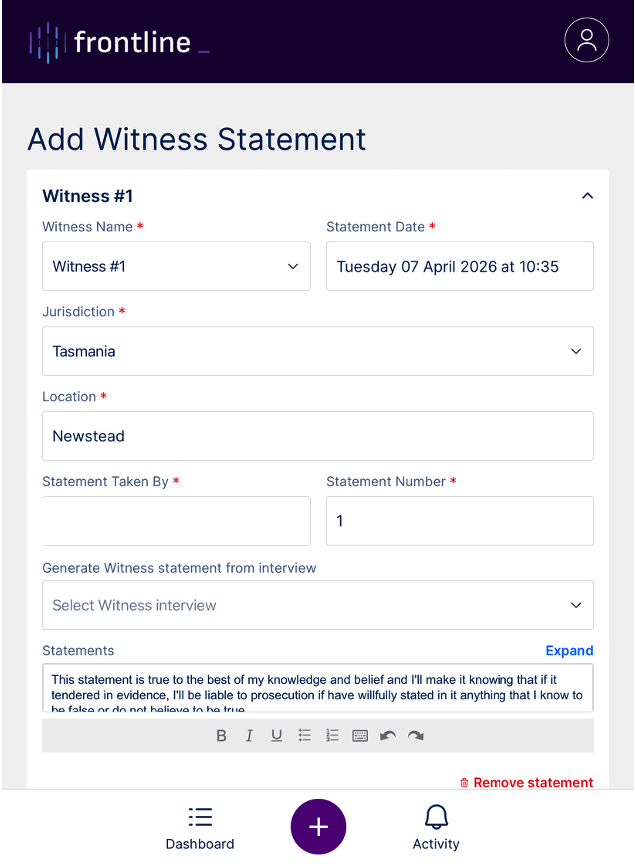
The Witness Statement tool is used to record formal written statements linked to a field note.
-
-
Open the Witness Statement tool to access the details page.
-
Select the Witness Name. This field is linked to the Involved Persons tool, so an Involved Person form must be created before the individual can be selected from the dropdown list.
-
Confirm or edit the Statement Date, which is automatically populated.
-
Enter the Jurisdiction, indicating where the statement is legally recognised.
-
Enter the Location, which refers to the general area (e.g. Brisbane, Sydney), not a specific address.
-
Enter the Statement Number, a unique identifier for the statement.
-
Confirm or edit the Statement Taken By field, which is automatically populated with the user’s name.
-
(Optional) Use the Generate Witness Statement from Interview field to convert a saved audio interview into a written statement using Comtrac’s AI.
-
Review or edit the Details field, which contains the statement content. This field supports manual entry, formatting tools, and an expand option for easier editing.
-
Finalising Field Notes
Finalisation Button
The first step of the field note finalisation process is to navigate to the finalise entry page by pressing the Finalise button located at the bottom right of the forms screen. Once the user presses this they will be taken to the finalise entry page.
Finalise Entry Page – Property & Witness Statements
Before the user can finalise their field note they will need to have all the relevant forms signed. These forms include any relevant property and witness statements. All these forms are signed using the in-app signing feature.
Witness Statement Pathway: Witness statements must be signed to confirm that the information accurately reflects the witness’s account.
-
-
Open the Witness Statement and review the details with the witness.
-
Begin the signing session and hand the device to the witness for review and signature.
-
Once signed, take back control of the device.
-
The app will return to the Finalise Entry page, where the statement is marked as completed.
-
Property Receipt Pathway: Property receipts document items that have been seized, collected, found, or handled during an investigation.
-
-
Review the property details with the involved party.
-
Have the involved party sign the receipt to confirm accuracy.
-
Once signed, the app returns to the Finalise Entry page, where the document is marked as completed.
-
Note: The witness statements can be signed by involved parties remotely using any available device that has access to a Wi-Fi connection. Remote signing can still occur even if there is no connectivity. The note will finish finalising when connectivity has been re-established.
Finalising the Witness Statement
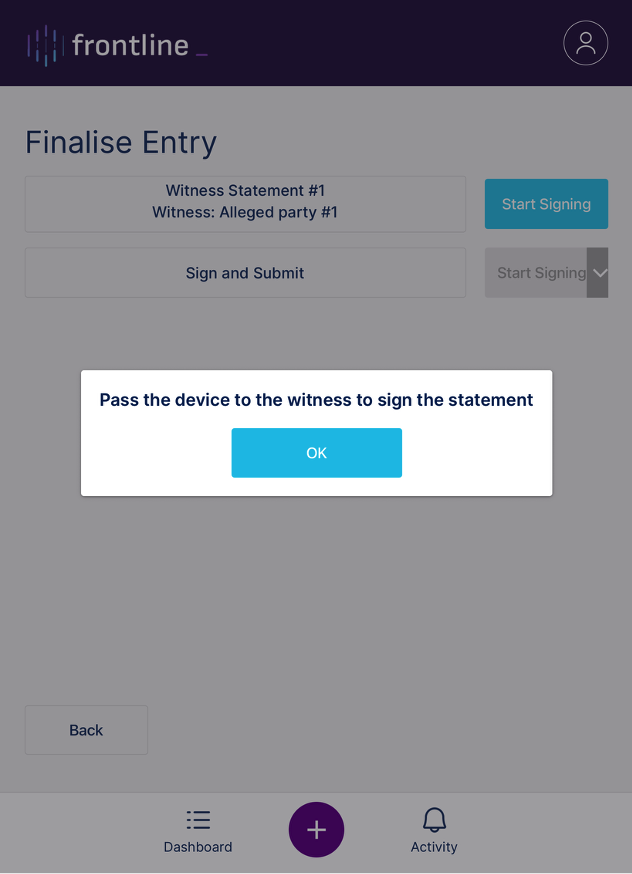
Witness Statement Preview
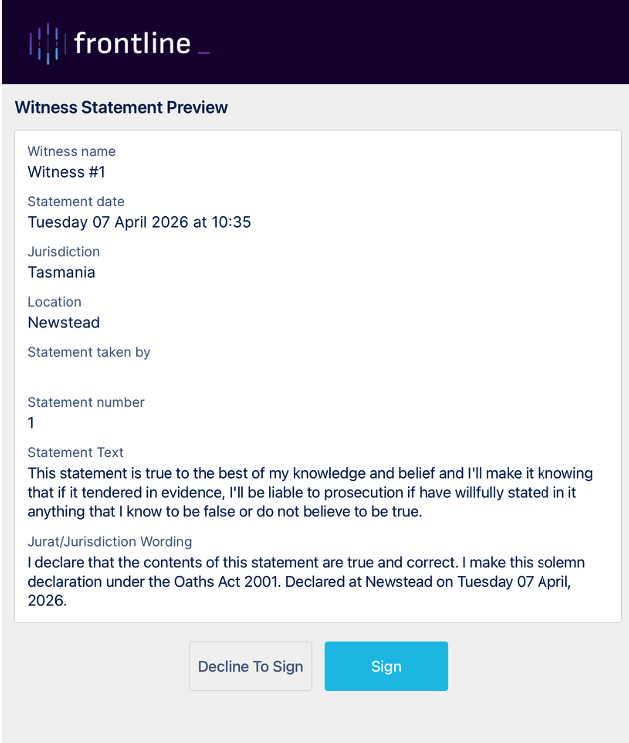
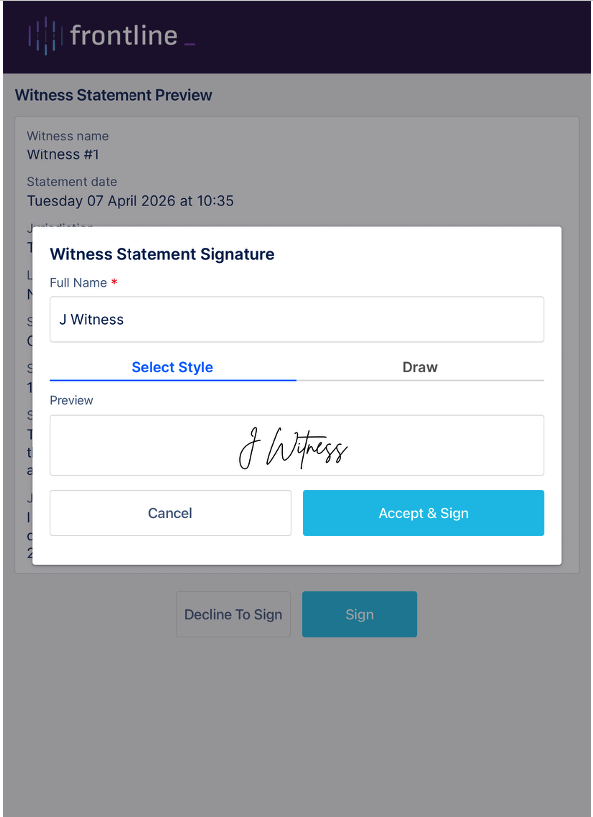
Witness Electronic Signature
Select Style (default style) is the first option and the most convenient, as a signature is automatically generated when the user (witness) enters name and initials.
Draw is the second option. When selected, it opens a drawing box in the preview section where the user can draw their signature. Once the user begins drawing, a Clear button appears, allowing them to remove anything they have drawn in the box
Once the witness has signed the statement a message appears to pass the device back to the user.
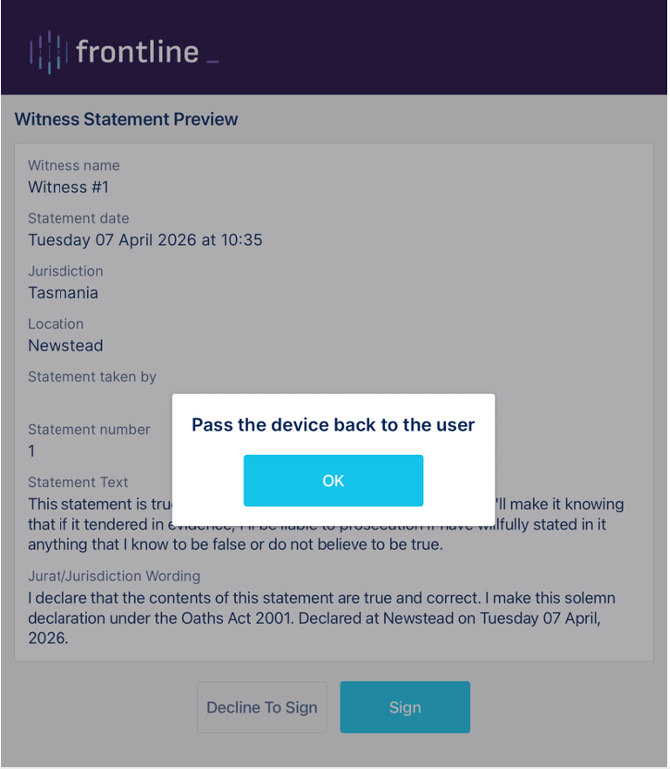
Note: When the user receives the device the user will need to re-authenticate with the device through Face Id or Touch Id.
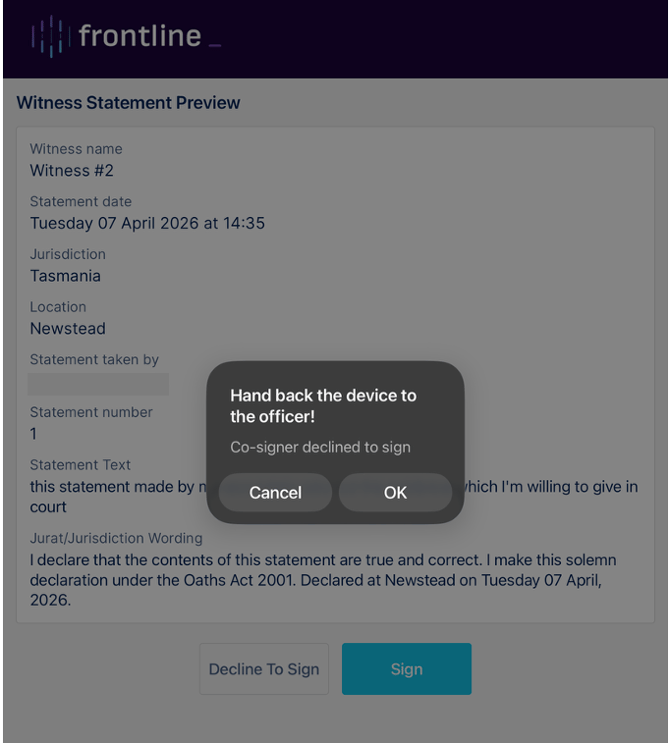
The Decline to Sign button opens a prompt informing the user that ‘Hand back the device to the officer’
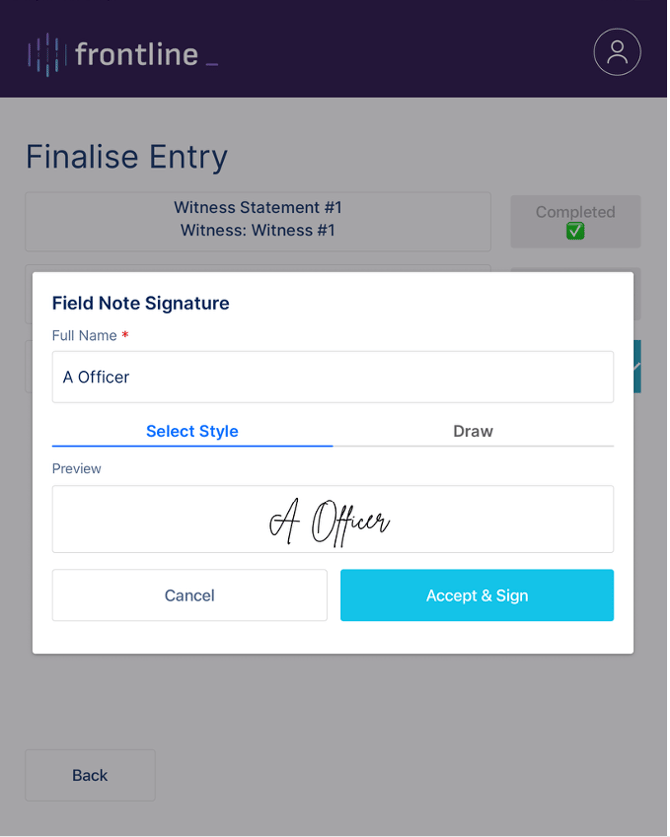
Once the witness statement has been signed, the user signs the field note using the same signing process.
Finalising and Submitting Field Notes
The last step in the finalisation process is to complete the Sign and Submit form. This form only becomes available after all property receipts and all witness statements have been signed.
-
-
Select Start Signing.
-
Complete the Field Note Signature.
-
Select Accept & Sign.
-
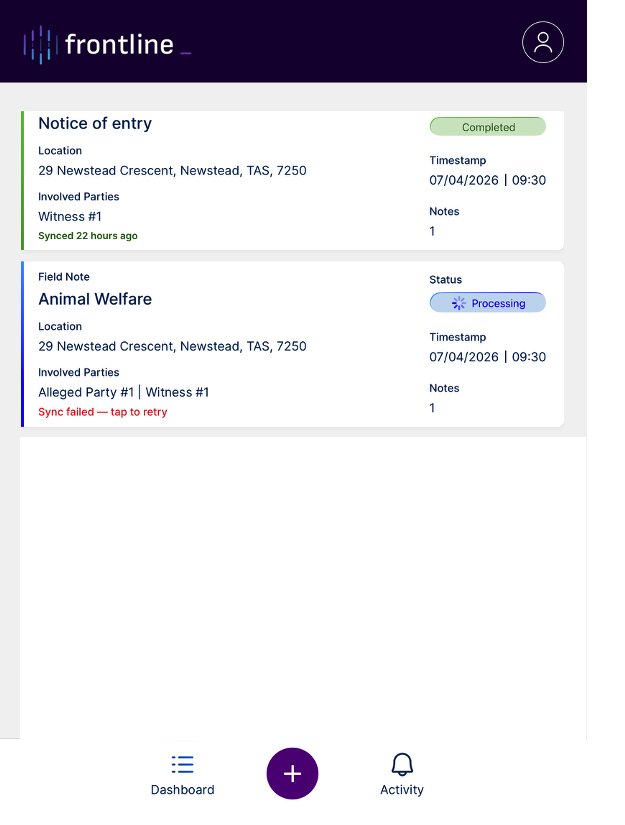
After signing, the user is returned to the dashboard, where the field note is marked as completed. The finalised field note is then available in the Field Notes section of the user’s Comtrac instance.
This guide provides a complete overview of how to use the Comtrac Frontline Mobile App to capture, manage, and finalise field notes in a structured and secure way. By following the steps outlined, users can ensure that all information is recorded accurately, supporting a clear and defensible investigation process. The application is designed to streamline field workflows while maintaining data integrity, auditability, and compliance requirements. Users should ensure all relevant forms are completed and signed before submission to avoid delays or incomplete records. For further support, refer to the Support team or contact your organisation’s Comtrac administrator.